
You are trying to sign up for Tinder or maybe just log back in, and instead of getting the verification code, you see this message: “Error: Phone Number.”
No explanation. No hint. Just a blocked screen and no access. I am here to help you understand the problem and walk you through the fixes.
Why Does Tinder Show “Error: Phone Number”?

Tinder uses your phone number as your primary identity. When you log in or sign up, the app sends a verification code by SMS.
If anything interrupts that part of the process, Tinder stops everything and blocks the login attempt. There are several common causes:
1. Incorrect number format
A missing country code or a single wrong digit can break the entire verification.
2. “Too many attempts”
If you request too many SMS codes in a short time, Tinder activates a temporary lock that lasts 24-48 hours.
3. Carrier blocking short code SMS
Some carriers block verification messages by default. Major carriers like AT&T, T Mobile, Verizon, etc., usually support verification without issues, while some smaller or international carriers do not.
4. VoIP or temporary numbers
Prepaid/VoIP numbers or numbers from Google Voice, TextNow, Burner, and others are filtered out by Tinder because they are commonly used for fake accounts.
5. Old banned or deleted account
Tinder has a rule that a number can only be verified on one account at a time. If the number was used on a banned profile, Tinder may permanently flag it.
6. Device, IP address, or VPN ban
Your phone itself might be associated with a ban. Additionally, VPNs change your location, and Tinder may block the attempt if the connection looks risky.
7. Unsupported/roaming carriers or app glitches
Tinder may treat smaller or travel SIM cards as virtual even if they are real. Also, outdated or corrupted app files can confuse the verification process.
“Error: Phone Number” isn’t impossible to beat. These are the steps you can follow to fix it:
1. Try a Fresh, SIM-Based Phone Number

If your number was created through an app such as Google Voice or TextNow, Tinder will either block it up front or let you in temporarily and then ban you.
To pass verification, the number must belong to a non-VoIP, private, and real mobile network. You have two options:
1. Major carrier where you live:
- USA: AT&T, T Mobile, Verizon
- UK: EE, O2, Vodafone
- Canada: Rogers, Bell, Telus
- Australia: Telstra, Optus, Vodafone
2. Virtual, non-VoIP numbers from DatingZest:
DatingZest is a service that provides private, virtual phone numbers with non-VoIP technology. It’s a paid service ($9.95) with a high success rate.
All you need to do is get the number, sign up on Tinder, and go back to the dashboard for the code. These numbers are designed to bypass such errors.
Tip: Update your number inside Tinder if you can access your account. This avoids the login issue entirely (Profile → Settings → Phone Number → Update).
2. Double-Check Your Tinder Number Format
Make sure your number includes the correct country code at the beginning.
- +1 for the United States
- +44 for the United Kingdom
- +61 for Australia
- +1 for Canada
Type the number manually. Do not paste it in. Remove any spaces, parentheses, or hyphens. If your country code is wrong or a single digit is off, Tinder will assume the number is invalid and block verification immediately.
3. Stop if You Triggered a Lockout
If you have been tapping “Resend Code” repeatedly or entering the wrong code too many times, Tinder activates an automatic protection delay.
It looks like the same error, but the system has actually locked verification for your number. Close the app and avoid opening it again during the cooldown.
Uninstall Tinder from your phone to prevent accidental retries, and wait at least 24-48 hours
After waiting, try logging in at Tinder.com on a new browser profile using Chrome Incognito or Safari. Trying again during the lock will only reset the timer, so patience is the real fix here.
4. Restart Your Phone and Update Tinder
Restart your device to refresh its network connection and background services.
Then update Tinder to the newest version in the App Store or Google Play. Many errors come from outdated versions that fail to process verification.
On Android, one more step often helps: Settings → Apps → Tinder → Storage → Clear cache. If it still fails, also tap Clear data.
This resets hidden app problems that might be blocking SMS requests from going out properly.
5. Try Another Internet Connection on Tinder

Switch your phone between W-Fi and mobile data. This reveals whether your connection is interfering with verification.
Disable VPNs or privacy tools because Tinder sometimes blocks login attempts that appear to come from foreign locations. A simple internet switch has solved the issue for many.
6. Confirm That Your SMS Is Not Blocked
Ask someone to text you first. If regular messages arrive but Tinder’s code does not, the issue may be with your carrier.
Call your carrier and say: “I am not receiving verification SMS messages from apps. Can you check if short code messages are blocked on my line?”
This is extremely common on family plans, business lines, and prepaid SIM cards. Once the setting is corrected, the code often arrives instantly.
7. Contact Tinder Support if Nothing Else Works
Go to the Tinder Help Centre and submit a login support request. If it’s an app-end issue (servers are down or Tinder is glitching), they can help.
– This is what to include in your message:
- A screenshot of the error message
- Your device model and operating system version
- Your mobile carrier name
- The country you are signing in from
- What steps you have already tried
If you pay for Tinder, mention your subscription level because support often responds faster to paying users.
Replies are not always helpful at first, but follow up politely once or twice, and you might reach someone who can review your case manually.
Can Facebook or Google Help You Log Into Tinder?
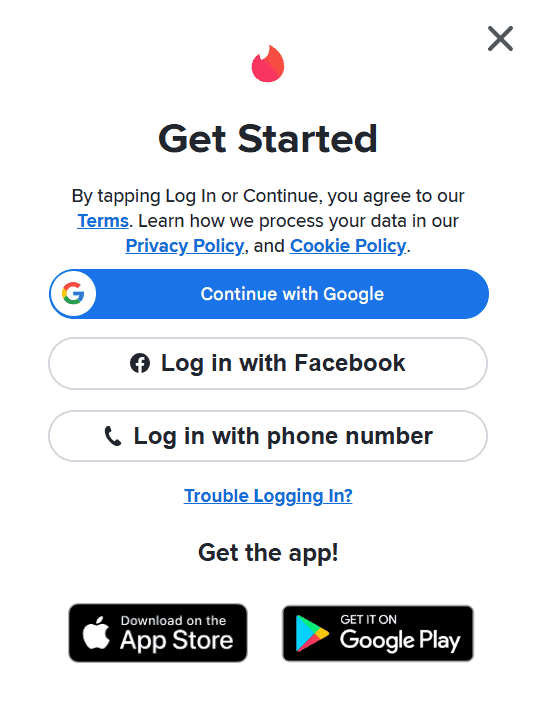
Facebook or Google can help you only if your number is verified. They give temporary access, but Tinder will still require a phone verification. If the number is banned, this option does not help.
The highest chance you have of solving this issue is the following sequence:
Waiting out the lockout, then using Tinder.com in private mode; call your carrier after if that doesn’t work.
Still no success? Reinstall Tinder on a different phone, using a brand-new SIM from a supported carrier. You can also borrow a friend’s number, then switch later.
FAQs – Tinder “Error: Phone Number”
1. Why is Tinder not sending me a code?
Either your carrier is blocking short code SMS, or Tinder has temporarily locked your number after too many attempts.
2. Why does Tinder say my number is invalid?
This happens when the number was used before on another Tinder account or when Tinder does not properly recognise the carrier. It’s common with public & VoIP phone numbers.
3. Can a banned number ever work again?
No. If a number is linked to a banned profile, it stays blocked forever, and you’ll be penalised for using it in the future.
4. Is the problem with my phone or my SIM card?
It can be either. Tinder sometimes flags the phone hardware rather than the number, so switching to a different phone can solve the issue.
5. How long should I wait if I triggered a lockout?
Wait 24 to 48 hours without retrying. Trying before that will just extend it.
The “Error: Phone Number” issue feels personal and confusing, but it is nearly always fixable. Start simple and work through the steps in order.
If nothing else works, the real answer is usually that Tinder no longer accepts your number or your phone. With the right method and a bit of patience, you will be back inside your account and ready to swipe again!

I am currently banned on tinder from my phone; I changed my Apple ID and bought the new number. When I put the new number, I didn’t receive any information regarding verification code. Is there any way you can help
How many times can you use this?