
Did Tind kick you out with a vague “Something went wrong” message or a cryptic code like a:86401? You try logging back in, but you can’t.
This issue has hit thousands of people in recent years across Match Group apps. Here’s everything you need to know about it and how to fix it:
All trademarks, brand names, logos, and product names belong to their respective owners. Any brand names mentioned are used only to identify the platforms discussed. This content is for general informational purposes only. DatingZest does not represent or provide services on behalf of any third-party brand, and users are responsible for following each platform’s terms and policies.
Why Tind Keeps Logging You Out
Tind logs you out when it can’t verify your login, doesn’t recognize your info, or re-verifies you. This doesn’t always mean you’ve been banned or shadowbanned – these are the confirmed causes:
1. Wrong Login Method
If you signed up with FB, Google, Apple, or any other number, but log in with different info, Tind creates an empty account. The same goes for email logins on the web.
2. Unverified or Expired Phone Numbers
If your number is expired, VoIP, or occupied, Tind may log you out or force verification after switching numbers without updating your Settings.
3. Too Many Code Requests and Forced Verification Triggers
If you keep requesting codes, you will trigger a 24-48 hour lock (error a:86401). Also, sudden location or device changes push Tind to force verification.
4. App Bugs and Backend Glitches
Bugs may affect users globally, forcing them out of their accounts due to session failures, update errors, or server miscommunication.
5. Device Sync or App Data Corruption
Cache, switching between Wi-Fi and mobile data mid-session, switching devices too quickly, or using VPNs can mess up your login state.
6. Account Under Review or Banned
If Tind flags your account, it may be suspended or banned outright. Suspensions can look like logouts. Bans show “Your account has been banned”.
7. Subscription Issues and Login Format Errors
Billing errors or Apple/Play Store issues may trigger logouts. And, typos like not using the full number (e.g., +44 or +1) make Tind think it’s a new number.
If you’re locked out or being kicked out repeatedly, follow these steps in order.
1. Log In the Same Way You Signed Up
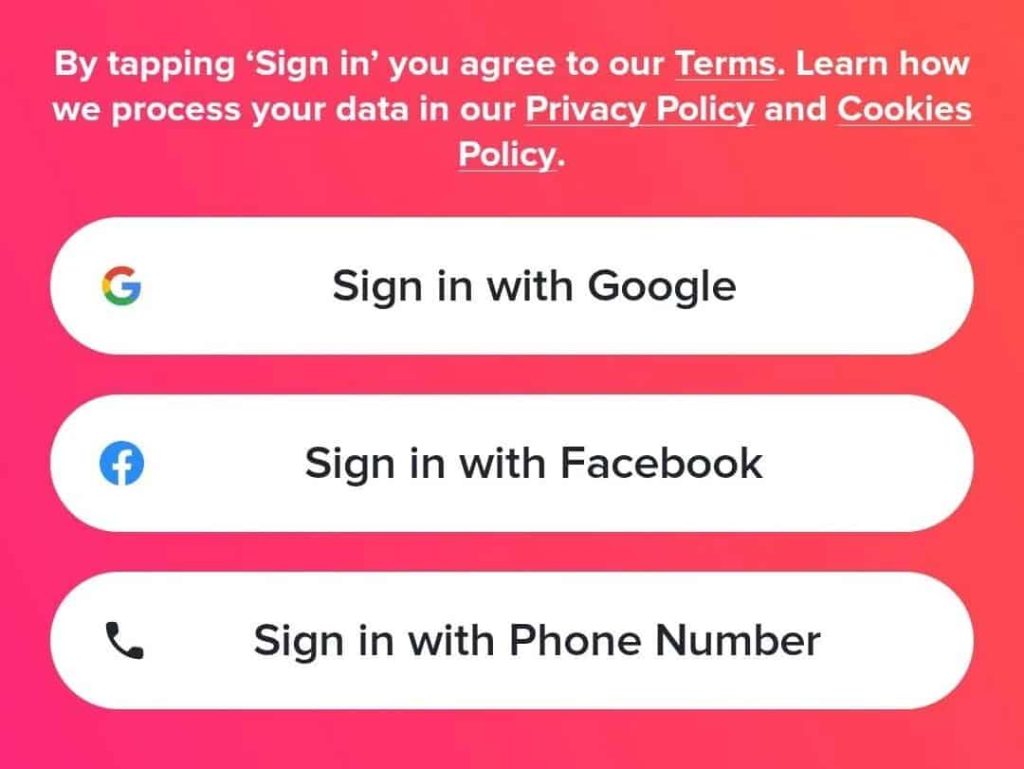
Always use the original method to log into Tind (Facebook, Google, Apple, or phone). If you switch to a different one, you’ll create a new account.
Stick to the same accounts as well, as having multiple saved accounts on a device may accidentally cause Tind to use the incorrect one.
2. Clear Cache or Reinstall the Tind App
Apps sometimes store files on your device that impact app performance, and in Tind’s case, the cache might be glitching the login method.
On Android: Settings > Apps > Tind > Storage > Clear Cache. Then open the app again or reinstall it from scratch.
As for iPhones, simply delete and reinstall the app. This often resolves invisible bugs or corrupted sessions.
3. Link an Email and Google/Facebook/Apple on Tind
Tind has alternative login options for convenience, so if your chosen method doesn’t work, you can log in with connected emails or Facebook/Google/Apple accounts.
Go to Settings > Connected Accounts. The more verification options Tind has, the easier the recovery.
4. Switch the Network/Device and Don’t Spam the Login Button
Network-related session mismatches are surprisingly common on Tind. If you’re on Wi-Fi, switch to mobile data. Or log in to Tind on a browser.
If you’re using a VPN, ensure consistency with your network connection instead of repeatedly changing it – always use a reputable VPN service.
P.S. If you see “Too many attempts”, stop logging in for 24-48 hours. Otherwise, the cooldown resets every time you try again.
5. Use Trouble Logging in Tind Option
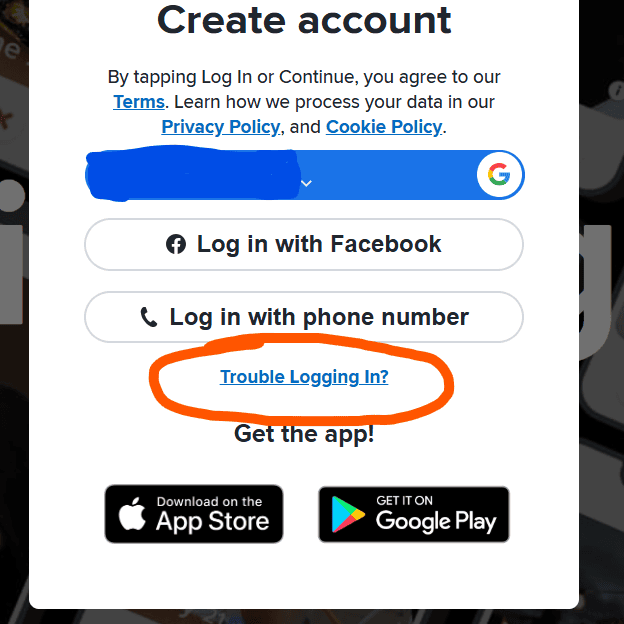
If you changed your phone number, go to Tind > Trouble logging in > Login with email. It’s Tind’s official, in-app account recovery method.
At this point, you can link a new, better number to your old Tind account. The number must be non-VoIP and SIM-based from legit services like DatingZest.
This only works if you added your email beforehand. If not, contact support and give them:
- Your old number
- Last login date
- Device details
- Screenshots if available
Tip: Check for Ban Messages. If you’re banned, you’ll usually see it. Otherwise, constant logouts or inability to verify may be shadowbans.
6. Contact Tind Support About the Login Issue
Go to Tind’s help page > Submit a request. Be polite, and explain that you keep getting logged out – include all login methods and account info, and try from both mobile and web.
If you’re a premium user and features vanish after a logout, go to Settings > Restore Purchase. If that fails, Tind support may manually reconnect it, especially if your Apple or Play account shows you’re still paying.
How to Not Get Logged Out of Tind
– Avoid VoIP Numbers: Google Voice, Burner, etc., are often flagged, leading to repeated verification requests or forced logouts. Use a real, SIM-based service like DatingZest to get legitimate, app-safe numbers.
– Don’t Delete Your Account: If Tind is glitching, deleting your account will permanently erase matches, messages, and payment history.
– Move Chats Off App: People have lost meaningful connections due to mass logouts. Share alternate contact info early if the convo matters.
– Check DownDetector Before Panicking: If others are reporting Tind outages, wait it out.
Traveling? Log in Before You Go: Tind may force re-verification in new countries. Logging in while still at home helps register your travel.
Use the steps above, avoid common traps, and secure your profile ahead of time. That way, even if Tind pulls the plug again, you’ll be ready.

Leave a Reply