
If you’ve ever seen the “Please check your number” error on Bumble, then you know how scary it is to, seemingly, lose your Bumble account.
But the good news is that this Bumble error message can be fixed, and quite quickly at that, so get ready because I’m going to walk you through it!
What Triggers Bumble’s “Please Check Your Number” Error?
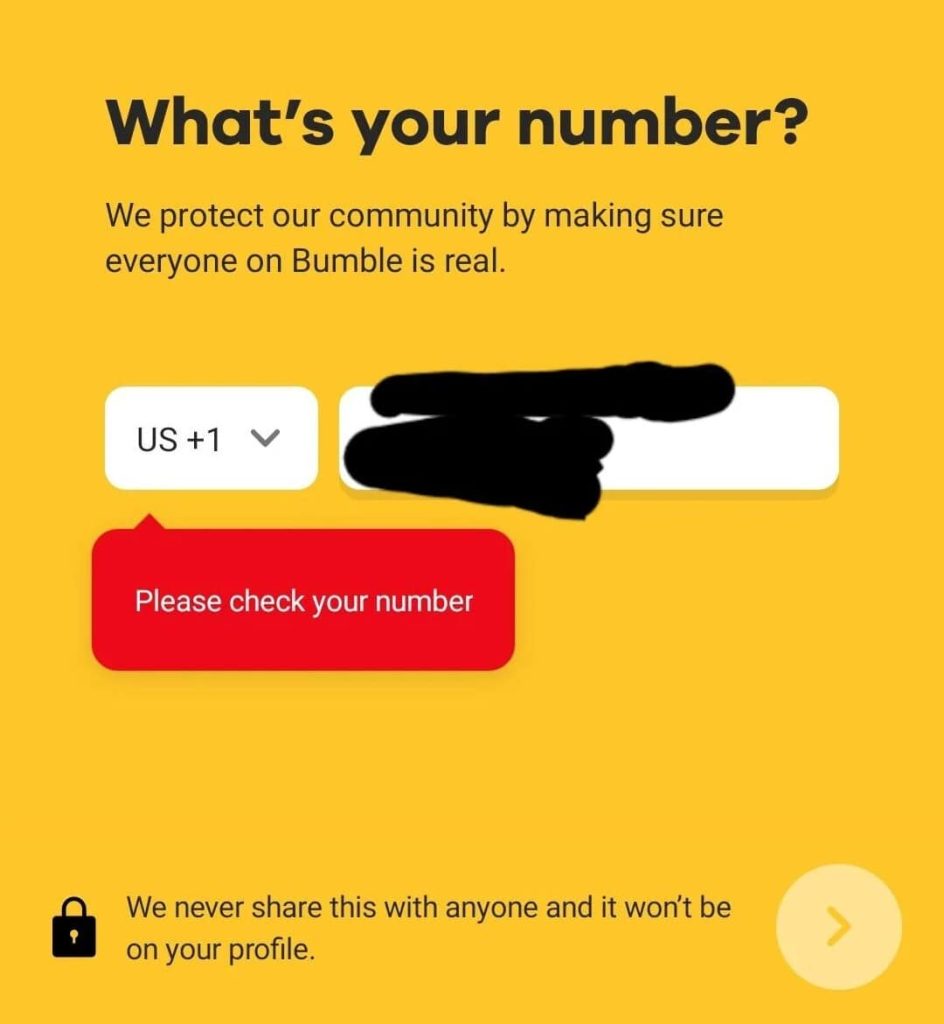
Bumble is going to say “Please check your number” if it senses something wrong with the phone number you’re trying to log in with.
Typos are the usual culprit. You might have left out a number, added an extra one, got a digit wrong, or messed up while writing the country code.
Similar to Tinder’s SMS Verification, Bumble is case-sensitive when it comes to registrations and sign-ins. The phone verification cannot be skipped, even if you signed up with Apple or Facebook.
It’s normally easy. You choose either the call or SMS option, get it in a few minutes, and type in the code or the last 6 digits of the Bumble caller.
📝 Note: Although not official, many say Bumble shows this error for reasons such as to rate-limit you after spamming codes or signal technical issues, too.
Now…onto how to fix the Bumble “Please check your number” error:
1. Check for Typos Before Hitting Enter on Bumble
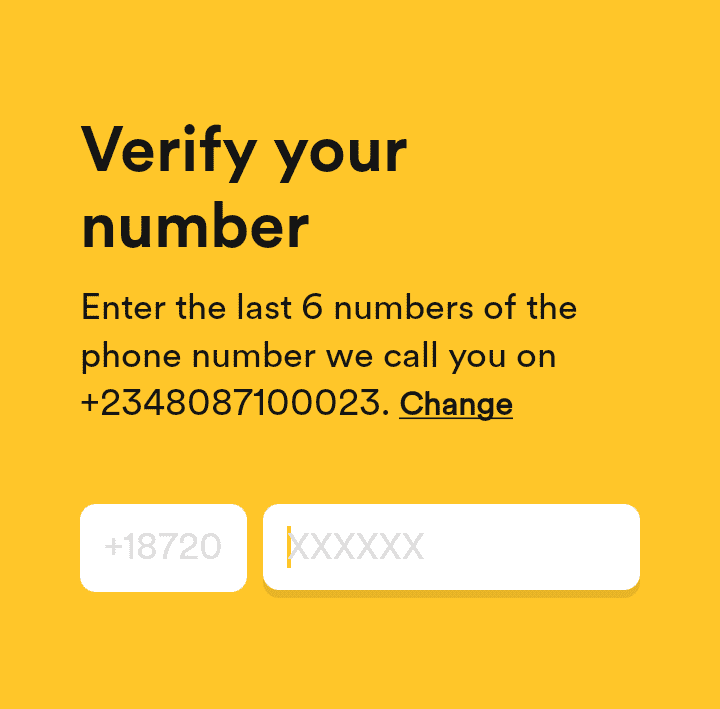
If you see “Please check your number” on Bumble, you likely made a mistake while writing the number, and Bumble cannot find your account.
Cross-check the number you’re using on Bumble with your actual one to prevent getting any digits wrong. Hey, the numbers are long! It happens.
I like to write it on a piece of paper, then proofread it until I’m sure the number is correct. If an option, copy-paste it for smoother application.
🌍 Select the right country code from the drop-down menu; no need to write it manually. Travelers beware! Remember if you have multiple SIMs.
For prepaid/virtual numbers, you have to use their pre-determined country code (e.g., +1 for the USA), even if it doesn’t match where you actually live.
If you have/had multiple Bumble accounts, keep track of which accounts are on which numbers so that you don’t accidentally confuse them during login.
2. Change Your Phone Number if Faulty on Bumble
Bumble might be intentionally blocking you, so you need to proceed without your number. Make the DatingZest switch!
DatingZest offers Bumble-verified phone numbers that are private, non-VoIP, and globally available to fix the “Please check your number” issue.
Big dating apps discourage fake phone numbers. Basically, Bumble doesn’t allow the usage of numbers that don’t meet the criteria:
- From an unsupported country (e.g., UAE);
- VoIP & public;
- Already in use or unverifiable;
- Previously banned on Bumble or its sister app Badoo
Can’t access your account? Either start new with DatingZest, or update the number of your current account to a DatingZest Bumblefone number.
🔗 To update your Bumble number, first add a second login method. Then open Settings in the app → “Security and Privacy” → “Ways you can log in (Phone Number)” → “Update my phone number”.
3. Wait 24-48 Hours Before Retrying on Bumble
Nothing good will come out of spamming the system, especially if your number format is correct, so give Bumble up to 24 – 48 hours to fix itself.
Bumble is one of the most popular dating apps, and technical issues may be caused by server overloads and a huge influx of users trying to log in/sign up –
This makes certain Bumble features glitch temporarily. Check DownDetector to keep track of Bumble’s current status, or talk with fellow Bumble users.
Outages might be global or partial and impact certain devices only: web, Android, or iOS.
4. Restart the Bumble App, Then Your Device
Sometimes, it’s your app or device that’s triggering “Please check your number” on Bumble, and it can show up in the following ways:
🐝 Outdated Bumble app. You’re using an older version of it and should check for updates on Google Play or App Store.
🤖 Corrupted app data. You need to delete the Bumble app’s cache if you have Android or reinstall the app altogether on iPhone.
📶 Inconsistent network. Restart your Wi-Fi, switch to mobile data, or go to an area with better signal because poor connectivity might be at fault.
📱Buggy device. If your phone/PC is glitchy, it might interfere with the verification. Use the Power Off option, and if that doesn’t fix it, the Reset one.
5. Contact Bumble Through the Help Centre or Social Media
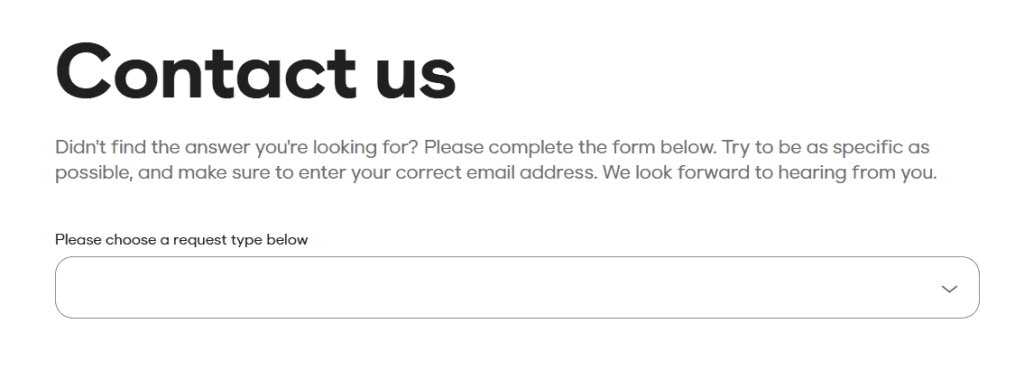
The “Please check your number” error message is more common than you might think, and the ones that can’t fix it on their own reach out to Bumble.
In-app: Go to Bumble’s “Contact Us” page, and pick the “Report a technical issue” option on the form, then “I’m having trouble verifying my profile.”
Give your email and add specifics in the Description field. Say Bumble isn’t accepting your number despite it being correct. Attach screenshots and add your Bumble ID, OS, and device.
On social media: Reach out to Bumble Support on X (Twitter) or Facebook. Be polite and concise – send a follow-up after a week or two of no response.
Why Isn’t Bumble Sending the Verification Code/Call?
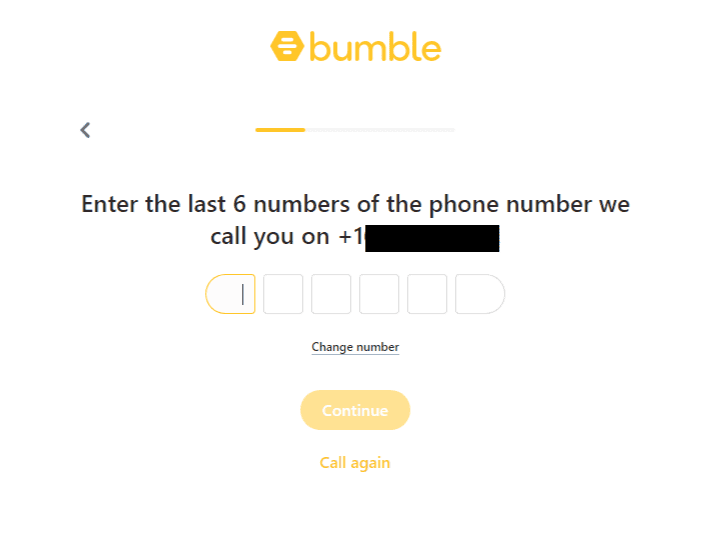
Wait a few minutes. Make sure the number doesn’t have any mistakes (the country code included), and that your network is solid.
There may be delays in the code/call delivery. Alternate between call and SMS verification if either of them doesn’t work at first. Click on the “Call again” or “Send code again” options 2-3 other times at most.
In case Bumble can’t send messages or calls to your phone, go to your phone’s Settings → Messages. Enable MMS Messaging (Multimedia Messaging Service).
Next, check the blocked numbers list to see if Bumble is there. Unblock it if so. Check the Spam and Unknown Senders folders, too, as your phone could be automatically putting all incoming calls/messages from Bumble there.
Answering Your Questions:
1. Why does Bumble say “Please check your number”?
“Please check your number” is an error message Bumble shows when the phone number you’re using to log in is incorrect (typos or wrong numbers).
2. My number is correct. Why do I still see “Please check your number”?
It’s possible Bumble is experiencing technical issues and cannot process your attempt. Wait a day or two, and try logging in again. No spamming.
3. Does “Please check your number” mean I’m banned on Bumble?
Very unlikely because you get notified, but not impossible. To confirm, have someone try to find your Bumble profile. If they can’t, then yes, you are banned.
4. Bumble isn’t sending me the verification code or call. What do I do?
Enable MMS in your settings, double-check your number, check your signal, look in the spam/junk folders, and make sure you haven’t blocked Bumble. Try the resend button 2-3 other times before taking a 24-hour break.

Leave a Reply