
If you’re thinking of joining Tind but dread the idea of friends, coworkers, or family finding out, here’s some good news: Tind does not notify anyone when you join.
Your profile stays private inside the app unless you want it to be seen. Still, Tind’s contact and privacy settings can be confusing, so here’s exactly how it all works and how you can stay fully under the radar.
What Happens When You Join Tind
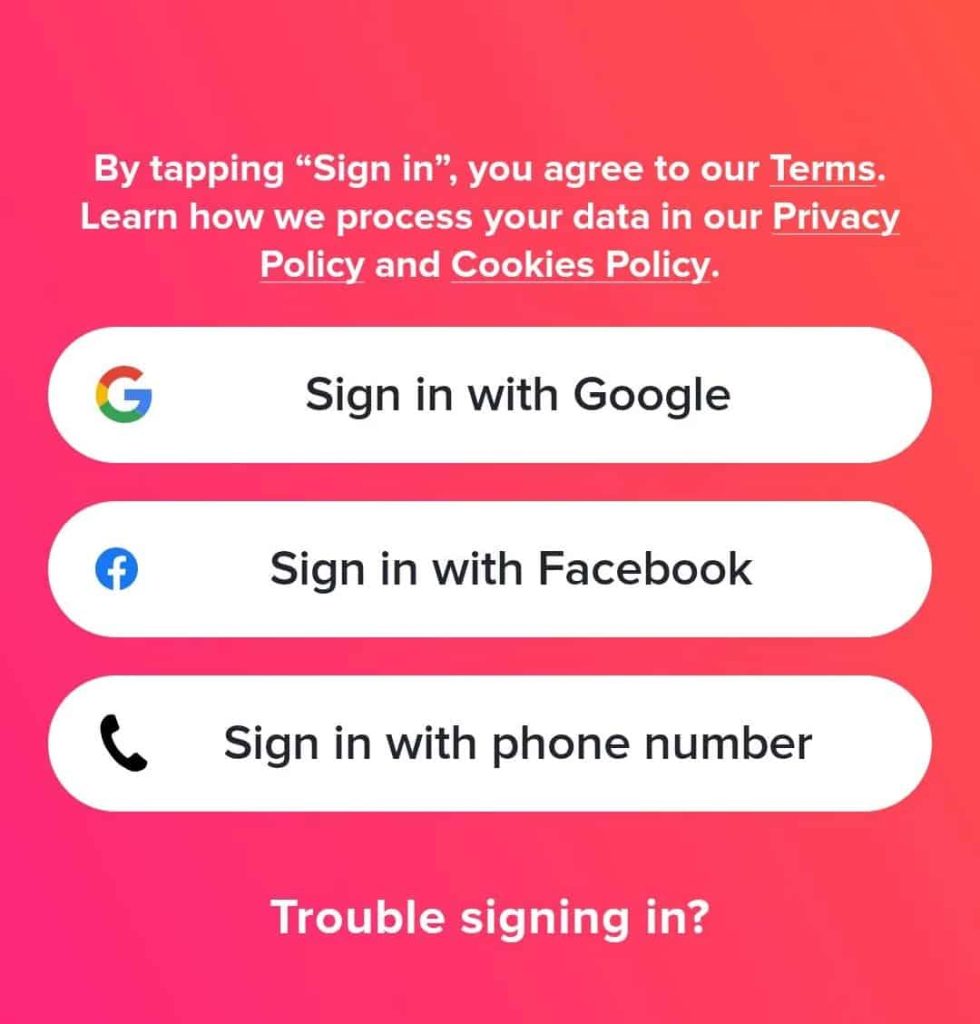
When you create an account, Tind offers three sign-up options:
- Phone number
- Google or Apple ID
- Social media login (optional)
Regardless of which you choose, Tind requires a one-time SMS code for verification. It’s a security step to confirm your number and prevent fake accounts.
If you sign up through socials like FB, Tind might import your first name, age, and profile picture, but it never posts anything to your timeline or notifies your friends.
Once your account is active, your profile remains entirely inside Tind. There are no notifications, emails, or contact sync alerts sent to anyone in your address book.
Your profile appears only to users within your age, gender, and distance preferences, and only after you turn on Discovery mode.
💡 Note:
Your phone number is private. No one can see it, search you by it, or use it to find your account. Tind uses it only for login, verification, and security.
Does Tind Access or Notify Your Contacts in Any Way?
Tind doesn’t show your phone number, nor does it notify your contacts, but it can access them if you give permission for certain optional features.
1. Block Contacts
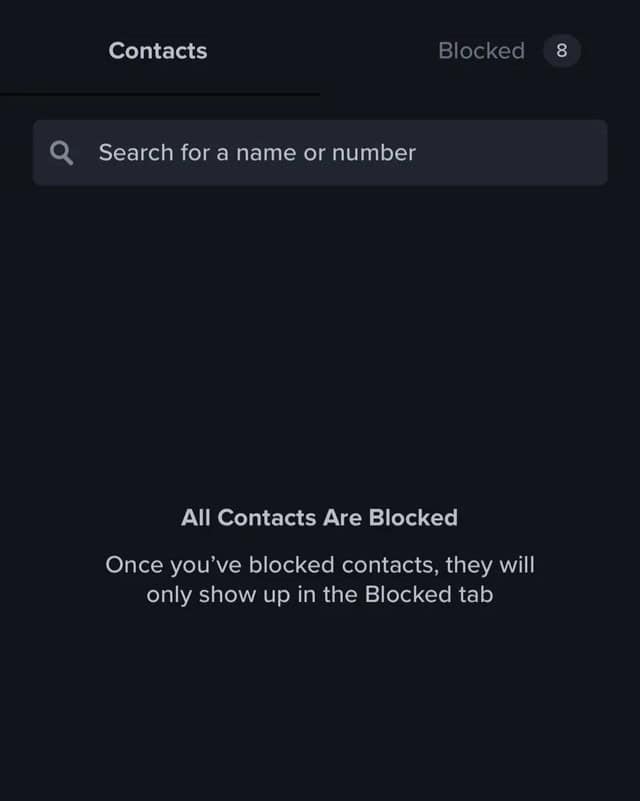
This feature hides your profile from people you already know, like exes, coworkers, or relatives. First. Tind asks for permission to view your contacts so you can choose who to block.
Only the selected contacts are uploaded, not your full contact list. Blocked people are never notified and cannot see your profile.
Pro tips:
- You can add contacts manually instead of syncing your entire phonebook.
- If you disconnect your contact list later, the people you already blocked stay blocked.
- Tind keeps only the data for blocked contacts (name, email, or number) and deletes everything else.
⚠️ Limitation: Blocking works only if the person signs up for Tind with the same number or email you blocked.
2. Friends in Common
This optional feature shows when you and another user share mutual contacts (only if you both enable it). Basically, Tind displays “3 contacts in common,” but never shows names, numbers, or identities.
But contact data is hashed before comparison. If you turn off the feature, Tind deletes those hashed entries.
3. No Hidden Invites or Notifications
Unlike social or messaging apps that announce when someone joins, Tind does not do that. It will not message, email, or ping anyone in your contacts.
The only way someone might realize you’re on Tind is if they are using it too and come across your profile while swiping. That’s not a notification, just how matching works.
What Others Can Actually See on Tind
Tind only shows a small snapshot of who you are. Everything else stays private.
✅ Visible on Your Profile:
- First name, age, and approximate distance
- Photos
- Bio, job title, education (if added)
- Mutual contact count (if Friends in Common is enabled)
- Verification or lifestyle badges
🚫 Hidden from Everyone:
- Phone number and email address
- Last name
- Exact location or address and full birthdate
- Contact list details
- Social media handles (unless you link them manually)
If you share a phone number or Instagram, that’s entirely your choice; Tind never reveals it automatically. Tind may analyze your activity (swipes, likes, and preferences), but other users never see that data.
How to Keep Your Tind Profile Private
Tind won’t out you, but there are easy steps to make your experience even more discreet.
1. Use a Separate Phone Number
If you’d rather not use Tind with your phone number, use a secondary SIM or a private verification number from a service like DatingZest.
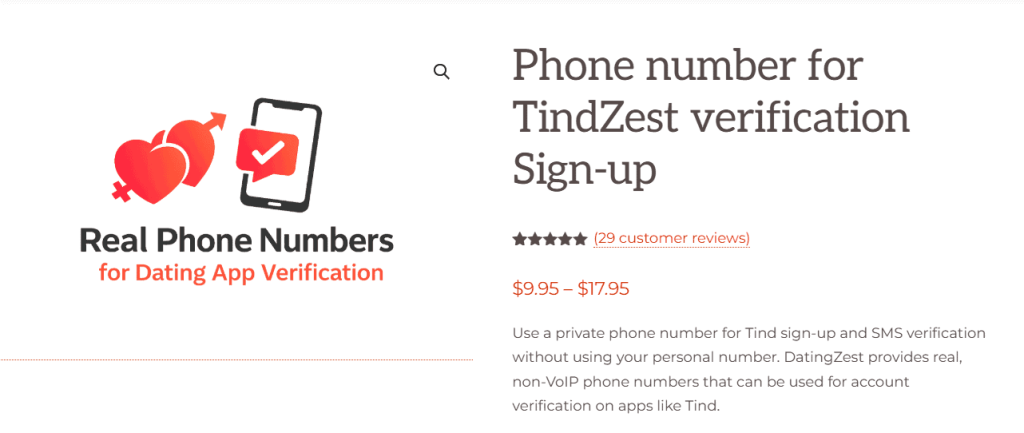
These use real, non-VoIP mobile numbers Tind accepts, which keeps your personal number completely private. You get two numbers for $9.95!
2. Skip social media login
If you prefer your dating life separate, sign up using your phone or email.
If you use social media login, change the Tind app’s visibility to “Only Me.”
3. Block People You Know
Before swiping:
- Go to Settings → Block Contacts.
- Add specific numbers manually (no need to upload all contacts).
- Update your list anytime; blocked users will never be notified.
4. Adjust Discovery Settings
Turn off “Show me” to pause being shown in swipes. Premium users can enable Incognito Mode or Only People I’ve Liked for total stealth.
5. Review Privacy Toggles
Tind’s privacy settings (some free, some paid) let you control what others see:
- Hide Age
- Hide Distance
- Hide from Top Picks
- Hide from Swipe Surge
- Show only to people you’ve liked, etc.
6. Keep Your Profile Light
Avoid listing workplaces, last names, or linking personal social accounts. You can upload photos manually instead of connecting your socials. Less personal data means less risk.
Extra Privacy and Safety Tips for Tind
– Block Profile (different from Block Contacts): lets you block a specific Tind account directly if you see someone you know.
– Unmatch vs Block: Unmatching removes a chat but doesn’t stop you from seeing the same profiles again later. Blocking ensures neither of you will ever see each other again.
– Matchmaker Feature: You can invite friends to recommend potential matches through a shareable link. They only see suggested profiles, not your messages or private info.
– Safety Alerts: Tind warns you (privately) if you share contact info or if a message looks suspicious.
– Photo Verification: You can verify your identity with selfies to earn a blue check badge.
– Privacy Rights: Tind allows you to request data deletion, opt-out of data processing, or modify permissions in your account settings.
Some have reported seeing “friends of friends” tags even without enabling contact access. This is usually a temporary sync issue or a data caching bug that clears once you disable Friends in Common and restart the app.
Once you’ve set your privacy preferences, you can swipe with confidence knowing your dating life stays private, exactly the way it should be!

Leave a Reply